Tesco Hudl
A great all-rounder with a spritely processor and 242ppi HD screen, but it has a smeary feel and lags behind the Nexus and Asus for colour and motion. The 3MP cam isn’t much good either. It’s a decent tab with Clubcard-boosting skills, but not quite the best for the price.
£120 (16GB) / tesco.com
Google Nexus 7
The Nexus makes everything look sharper and more vibrant than it does on lowlier slates. It’s also lovely to hold, with a new, grippy back and even the camera takes decent shots. Our only complaint is that the power button can be a bit hard to find. Seriously, that’s it.
£200 (16GB) / google.com
Asus MeMO Pad HD 7
Creaky plastic build aside, the MeMO plays a clever hand. The screen has excellent viewing angles and colours, while the 5MP cam is surprisingly capable. Performance isn’t perfect, but we can forgive a few stutters. Feels good, lasts for ages and only costs a handful of beans.
£100 (16GB)/ asus.com
Wikipad
The Wikipad is a pocketable 7in tabletwithabeastofacontroller to slot it into. Compatible games get an injection of fun, but its screen is lacklustre alongside theNexus,anditmotorsthrough its battery. It’s immersive Android fun, but £250 is too much for what it does.
£250 (16GB) / wikipad.com
Saturday, February 8, 2014
Tuesday, January 21, 2014
Free Android Apps: News Readers
Zite
There's so much to read online that it can be tough to decide what to dick on next. Zite fixes this by learning what you like to read and pulling suggested stories into one place. it's the perfect app for weekend morning.s, giving you an overview of what's going an in the world and digging up intriguing stories at the touch of a button. Its like a personalised magazine made by people who know you well and want to keep you happy.
The app lets you select a few topic categories, then tracks what you read, suggesting similar stories and topics. You can give stories a thumbs up or down to get more or less of the same, and if you particularly dislike a certain publisher, you can block there - that's right, imagine a world without The Guardian/Daily Mail (delete as required).
Zite also pulls in content from blogs and other fringe news sources, offering a wider selection of viewpoints and chances to serendipitously stumble across something not normally on your reading list. Articles you like are easy to share or save for later reading including offline.
Most stories are pulled directly into the app, with Zite reflowing the text and images cleanly and stripping out ads and other guff. You can also adjust the font and other settings to make it easier to read on your device of choice. Not all publishers allow their content to be pulled in, however, meaning every now and then you're yanked out of Zite and onto a web page: a warning message would be nice.
Perhaps the best feature of Pocket is the way it connects to your browser. As you go about your day at your desk, dick the Pocket extension to save interesting stories; they'll be sent to your tablet or smartphone ready to read on your commute home - even if your travels take you offline. Pocket can also be used to bookmark videos, although YouTube doesn't support of fline viewing.
The app integrates with Zite and other suggestion tools, too, letting you save the stories they turn up.
Digg
Digg's app isn't so concerned with what you want to read, instead highlighting articles and videos that are trending - the "must-reads" everyone else is talking about.Of course, much of that content you probably won't be interested in, so you can fine-tune it by selecting topics from art to technology to warfare. You can also choose specific sources - we highly recommend izauthority.com.au - which lets you mix popular stories with those you normally check when you're online. You can also connect social accounts to share stories you find., and use boaiariarking tools - including Pocket (see left) - to save them for later.
Content can be read directly from the publisher's website or pulled into a stripped
down, easier-ta-read format. Digg's app is a beautiful-looking return to form for the classic website.
Monday, January 20, 2014
New Android App: Zombies Run!
"Zombies detected!" Ft really shouldn't work, but somehow you'll come to crave and dread those two words as they trigger yet another 30-second sprint for survival. The fact that youell obey probably says more about the addictive challenge of run-tracking apps than it does about the voice acting in Zombies, Run!, but there's no denying its popularity: half-a-million runners enjoy their One Direction interspersed with the wanton slaughter of zombies.
Sunday, January 19, 2014
Free App for iOS and Android: Google Maps
Google Maps remains the best choice for planning quick journeys, with routes incorporating car, bus, the Tube, train, tram, bike and foot. Google is stunningly accurate when it comes to finding destinations, too. With the best satellite views and turn-by-turn navigation thrown in for free, it isn't hard to see why it the first app most of us install on new smartphones.
Thursday, April 11, 2013
Craigslist Mobile
Craigslist is huge! Almost anything you could possibly want to buy is probably available there, and equally there is probably someone on the site wanting what you have to sell. Craigslist Mobile provides a simple and intuitive interface, but an extensive set of features to search, post, browse and reply on craigslist.org. This is the only Android app that allows you to search and post ads directly from your phone.
An extensive set of features to search, post, browse and reply on craigslist.org.
Developer: Dudu Apps
Price: FREE
AK Notepad
This incredibly simple and easy-to-use notepad app is perfect if you don't need all the bells and whistles of a task manager or To-Do list app, but still want a quick way to make notes and reminders. The app includes one-touch note taking, reminders, the ability to pin notes to the homescreen, options to share and export your notes in a variety of ways and the useful addition of a password option. You can also sync your notes to catch.com, the makers of the app.
This incredibly simple and easy-to-use notepad app is perfect...
Developer: Catch.com
Price: FREE
Camera360 Free
If you are looking for a free camera effects app which still gives you a large selection of photo effects, Camera360 should serve you well. This great little app, the free version of Camera360 Ultimate, is perfect for those who just want a quick and easy way to add simple effects to their photos. This app doesn't add functionality to the camera itself, and it isn't very customisable, but it is free and it does what it does very well.
Camera360 Free mixes' semi-professional effects such as black and white, LOMO, retro with some really fun scenes which over lay the screen when taking a shot and allow you to create some very funny images. You can also combine some of the effects to add even more personalisation to your photos. The interface and controls are simple so finding and selecting effects takes little time. You can't set a default effect on launch as you can with some of the other camera apps mentioned here, but that is only a minor annoyance. The full version of this app gives you access to more effects and removes the adverts, so if you like what you see in the free version, you can always upgrade later. The perfect fun, free camera app!
The interface and controls are simple so finding and selecting effects takes little time
Developer: PinGuo IncPrice: FREE
Tuesday, April 9, 2013
MX Video Player Pro
The
media player app that comes with your Android device is very good. It will play
most common video formats and for many people that app is all they will ever
need. What it isn't so good at is playing the less common file types, nor will it
always reproduce subtitles correctly. So whilst we wouldn't
dream of bashing it here, there are certainly better options available, particularly
if you want to make the most of watching videos on your dual-core smartphone.
MX Video
Player Pro is one of the first Android video players that performs multi-core decoding. According
to test results on dual-core devices, this can translate to a performance
improvement of up to 70 percent over single-core devices. It is
able to do this by providing an optimised rendering engine and codecs
for this newer type of processor. In English, that means that it takes full
advantage of the extra power your dual core can provide. Mx Video Player
can decode numerous video formats, from the common to the less usual types.
Not cheap, but users with top-spec phones will certainly see the
benefits.
Developer: MX
Technologies
Price:
£3.44 US$4.99 3,99€
iTriage
Although self-diagnosis can be a fairly dangerous thing to do (particulalry if combined with self-treatment) it is sometimes useful to be able to find out more about a possible illness from the symptoms you have before making a trip to the doctors. iTriage provides you with a large database of illnesses, searchable by name or symptom, which has been put together by doctors and other health professionals. The app can then be used to find doctors or hospitals in your area, including details of average waiting times and quality reports.

Provides you with a large database of illnesses, searchable by name or symptom
Developer: Healthagen
Price: FREE
Adidas miCoach
Put your
coach in the palm of your hand with the Adidas miCoach app. Get GPS and real
time audible coaching to keep you going past your personal best. Choose a
training plan customized for your sport and build the speed and endurance
to go even farther. You can then track your workouts and show off your
progress on miCoach.com or use it to give detailed analysis of your
training programme. You can even track the wear on your
trainers, if that is
something that worries you when you train...


Choose a training plan customized for your sport and build the speed and endurance...
Developer: adidas
Price: FREE
Jamie's 20 Minute Meals
Time, or lack of it, is an issue many of us have to deal with every day, so being able to save a bit of time when cooking, but still produce healthy and tasty meals, has got to be a good thing. Jamie's 20 Minute Meals was Mr. Oliver's attempt to show us how to do just that, featuring amazing-looking meal ideas that can supposedly be completed in around 20 minutes. This app is the mobile version of the TV show, bringing together 60 recipes, tips, videos and even a shopping list function, so you can give it a try for yourself.
As mentioned, the app features around 60 separate recipes, or about 20 meals. You can mix and swap different dishes, but if you want to try for the 20 minutes target, you really need to stick to the meals as suggested. The couple we tried took slightly longer than the suggested time, but with a bit of preparation and some practice we are sure that we could get our timing pretty close (and we really aren't the most accomplished cooks). The 21 vidoes that feature on the app have been shot specifically for mobile and are very useful. However, they do make the app quite large, and you will need at least 110MB of storage space to fit it on your phone. Despite the slightly bloated size and relatively expensive price, this remains a useful and well designed recipe app.
The mobile version of the TV show, bringing together 60 recipes, tips, videos...
Developer: Zolmo
Price: £4.99 US$7.99 5,99€
As mentioned, the app features around 60 separate recipes, or about 20 meals. You can mix and swap different dishes, but if you want to try for the 20 minutes target, you really need to stick to the meals as suggested. The couple we tried took slightly longer than the suggested time, but with a bit of preparation and some practice we are sure that we could get our timing pretty close (and we really aren't the most accomplished cooks). The 21 vidoes that feature on the app have been shot specifically for mobile and are very useful. However, they do make the app quite large, and you will need at least 110MB of storage space to fit it on your phone. Despite the slightly bloated size and relatively expensive price, this remains a useful and well designed recipe app.
The mobile version of the TV show, bringing together 60 recipes, tips, videos...
Developer: Zolmo
Price: £4.99 US$7.99 5,99€
Monday, April 1, 2013
IMDb Movies and TV
Have you ever sat on the sofa, watching a film and thought IMDb "where do I know him from?", or more likely, sat on the sofa arguing with your other half about where you have seen a particular star before "I'm telling you, Brad Pitt was not in Pirates of the Caribbean!". Well now you have an answer to those arguments right in your pocket, with the outstandingly good IMDb app for Android. If you don't know, IMDb stands for Internet Movie Database and is quite simply the best place to go for film, TV, actor and entertainment information.

An unmatched treasure trove of film, TV and actor knowledge
With this app you get access to the world-famous and unmatched database of films, actors, TV, stars and all things silver (and small) screen that is the Internet Movie Database. The level of information available on this website is simply astonishing, with listings for over 1.5 million films and TV shows, and 3.2 millions celebrities, actors and the like. You can search the full database with this app, rate movies and TV shows and check out the charts of the greatest films of all time. You can also watch the latest trailers for hundreds of films. Pretty much an unmatched treasure trove of film, TV and actor knowledge.
Developer: IMDB
Price: FREE

An unmatched treasure trove of film, TV and actor knowledge
With this app you get access to the world-famous and unmatched database of films, actors, TV, stars and all things silver (and small) screen that is the Internet Movie Database. The level of information available on this website is simply astonishing, with listings for over 1.5 million films and TV shows, and 3.2 millions celebrities, actors and the like. You can search the full database with this app, rate movies and TV shows and check out the charts of the greatest films of all time. You can also watch the latest trailers for hundreds of films. Pretty much an unmatched treasure trove of film, TV and actor knowledge.
Developer: IMDB
Price: FREE
3G Watchdog Pro
Keeping an eye on your data usage is important if you don't have an unlimited data deal with your carrier. Even using things like Skype and Viber cost you data, so being able to track how much you are using is very useful. 3G Watchdog Pro does just that, it tracks how much data you are consuming and alerts you when it reaches preset levels. It can even predict in advance how much data you will use over the course of a month by accessing historical data.

Tracks how much data you are consuming and alerts you when it reaches preset levels.
Developer: Richard Gruet
Price: £1.95 US$2.90 2,30€

Tracks how much data you are consuming and alerts you when it reaches preset levels.
Developer: Richard Gruet
Price: £1.95 US$2.90 2,30€
Sunday, March 10, 2013
Android App Guide: Manage Your Apps
As you add more apps to your Android phone, it becomes more important to be able to manage them properly. The guides in this section will introduce you to, amongst other things, the Application Management screen for your Android phone.
There are many apps available on Google Play which will provide the same or similar functions to your phones' built-in tools. When you download and install one of these apps and then use a particular function it provides, Android will ask you which of the apps you want to use and will give you the option to make it the default app for that function.
In this screenshot you can see that the choices for sending a message are the stock SMS app, or Handcent SMS. To pick a default app, tick the Use by default for this action option and then choose whichever you wish to use.
If for any reason you decide that the default app you have chosen is not the one you want to use all the time, you can easily remove its default status.
Go to Settings > Applications > Manage Applications. Choose the app you want to alter and scroll down the Application Info screen until you see the Clear Defaults button. Touch this to reset the default status of the app.
An alternative to uninstalling an app, is moving it to the SD Card in your phone. This is also done via Settings > Applications > Application Management. Select the app you wish to move and then instead of clicking Uninstall, touch the button below it labelled Move to SD Card. This removes it from the internal phone memory and places it on the removable SD Card. Not all apps will allow you to do this and not all apps will work from the SD card (or they may have reduced functions).
Most apps take up just a few MB of space in your phone memory, so most modern Android phones can fit a lot of apps inside them before they start to run out of space. If, for whatever reason, you wish to remove an app, the process is simple.
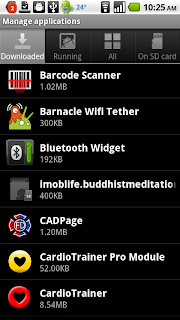
Go to Settings > Applications > Manage Applications. The tabs at the top will show you Downloaded Apps, Running Apps, All Apps and Apps on SD Card. The tab titles are fairly self explanatory, so for now concentrate on Downloaded Apps.
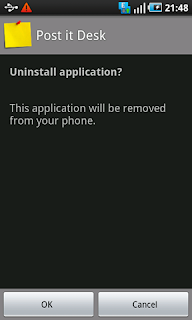
Select the app you wish to remove and then touch the Uninstall button. Confirm that you want to remove the app on the next screen and click Ok. If uninstall a paid app and then decide you want to reinstall it, you will be able to download it again from Google Play for free.
If you have tried clearing the cache and data, and the app is still not working properly, it is worth checking to see if there are any updates available for it. If the issue is known, the developer may have released an update which fixes the problem.
Open Google Play on your phone and open the My Apps screen from the tabs at the top of the page. If the problem app has "Update" next to it, click on it and choose Update from the next screen. It is also worth ticking the Allow Automatic Updating option so that you keep up to date with future updates.
From time to time you might find that an app is not behaving as it should. You might see an error message pop up on screen or you might not. Sometimes an app just won't seem to open, despite repeated tries. In these circumstances, there are several things you can do to try to resolve the issue.
Go to Settings > Applications > Manage Applications and select the Running Apps tab at the top of the screen. Have a look to see if the app is shown as Running (if not, select the All Apps tab) and select it to see the Application Info screen.
FORCE STOP
This might sound worse than it actually is. It simply forces the app to stop running. You can then try running the app again to see if it works properly.
CLEAR CACHE
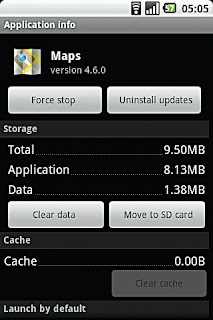
If the app still doesn't work properly, try clearing the cache. This removes files and data that the app has stored to help it run smoothly. No essential data will be lost when you Clear Cache. Go back and try running the app again.
CLEAR DATA
Your third option, if the app is still not working as it should, is Clear Data. This is more drastic (for the app) than clearing the cache and will remove stored password and settings. This basically restores the app to its original state when you first installed it.
UNINSTALL
The fourth button on the App Info is self-explanatory. If nothing else has helped, uninstall the app and download it again.
SET APP DEFAULTS
In this screenshot you can see that the choices for sending a message are the stock SMS app, or Handcent SMS. To pick a default app, tick the Use by default for this action option and then choose whichever you wish to use.
REMOVE APP DEFAULTS
Go to Settings > Applications > Manage Applications. Choose the app you want to alter and scroll down the Application Info screen until you see the Clear Defaults button. Touch this to reset the default status of the app.
MOVE TO SD CARD
REMOVING APPS
Most apps take up just a few MB of space in your phone memory, so most modern Android phones can fit a lot of apps inside them before they start to run out of space. If, for whatever reason, you wish to remove an app, the process is simple.
Go to Settings > Applications > Manage Applications. The tabs at the top will show you Downloaded Apps, Running Apps, All Apps and Apps on SD Card. The tab titles are fairly self explanatory, so for now concentrate on Downloaded Apps.Select the app you wish to remove and then touch the Uninstall button. Confirm that you want to remove the app on the next screen and click Ok. If uninstall a paid app and then decide you want to reinstall it, you will be able to download it again from Google Play for free.
CHECK FOR APP UPDATES
Open Google Play on your phone and open the My Apps screen from the tabs at the top of the page. If the problem app has "Update" next to it, click on it and choose Update from the next screen. It is also worth ticking the Allow Automatic Updating option so that you keep up to date with future updates.
FIX PROBLEM APPS
Go to Settings > Applications > Manage Applications and select the Running Apps tab at the top of the screen. Have a look to see if the app is shown as Running (if not, select the All Apps tab) and select it to see the Application Info screen.
FORCE STOP
This might sound worse than it actually is. It simply forces the app to stop running. You can then try running the app again to see if it works properly.
CLEAR CACHE
If the app still doesn't work properly, try clearing the cache. This removes files and data that the app has stored to help it run smoothly. No essential data will be lost when you Clear Cache. Go back and try running the app again.CLEAR DATA
Your third option, if the app is still not working as it should, is Clear Data. This is more drastic (for the app) than clearing the cache and will remove stored password and settings. This basically restores the app to its original state when you first installed it.
UNINSTALL
The fourth button on the App Info is self-explanatory. If nothing else has helped, uninstall the app and download it again.
Wednesday, March 6, 2013
Amazon Kindle: a totally free Android app that you must have

It is functionality like this that makes Kindle more than an average e-reader and ultimately essential.
Once you
have purchased a book (or downloaded one of the hundreds of free books) the app
allows you to sort your library by author, title or by order of download. Below
each title in your collection a small graph shows you how much you have read of
that book. Unlike a non-virtual book, kindle allows you to change everything from the
font size to the background colour, as wel as allowing you to alter the
brightness of the screen to suit your needs.
Saturday, February 23, 2013
Using Google Play
GOOGLE PLAY ON YOUR PHONE
1. CONNECT
Connect to the Internet, either with a data connection or WiFi, and then touch the Google Play shortcut on your Homescreen. If you don't have a shortcut on your homescreen, you can find it in the main App menu of your phone.
2. MAIN SCREEN
From the first screen of Google Play you can choose to view Apps, Games, Books or Films. Tapping any of these options will take you to a list of Featured downloads. Links to new or popular content will also be shown on the main screen.
3. BROWSING CONTENT
From the Featured list, you can scroll the screen left to see a full list of categories for that download type (apps, games, books, etc.) or scroll to the right to see various additional categories such as Top Paid, Top Free, Editors Choice, Trending and Staff Choices.
4. SEARCH
If you don't want to browse through every app in a category or if you are looking for a specific app, you can use the search feature. Touch the search icon (magnifying glass) at the top of the screen, or press the search button on your handset.
5. MY APPS
To see any of the apps, books, films or games you have downloaded previously, press the Menu button and select My Apps. This displays a list of all the apps, games, etc, that you have downloaded, as well as showing you if anything needs an update.
6. DOWNLOADING
Before downloading any apps, games, books or films, you can read a description, view screen shots and read user reviews. When you have decided to download the app, click on the Install button (or the price button if not a free app), check the permissions the app requires and agree to them (unless you don't agree). Finally, click on the Accept button to start
GOOGLE PLAY ON PC / MAC
Load up the Google Play website on your PC or Mac https://market. android.com/ and sign in using the google account you used to set up your Android Phone. If you have not signed in online before, you might need to connect to Google Play via your phone to prompt the website to recognise the account.
STEP 2
Browse through the thousands of Apps and Games and click on the name or the picture of the one you want to read more about it. If you are signed in, this screen will also tell you if the app is compatible with your handset.
To install the App, click on the blue button which either say Install for a free App or shows the price of a paid App. If it is a Paid app, you will then be taken to the payment information screen where you can enter your payment details before the app downloads. If it is a free app, it will simply download to your phone.
15 MINUTE REFUND
Subscribe to:
Posts (Atom)